Viewports
This guide will show you how to split the screen and how to keep the same area visible at any window size.
A viewport is the part of the window that a camera draws to. Every camera takes one:
_camera = new Camera(new DefaultViewport(GraphicsDevice, Window));
SetViewport puts it on the GraphicsDevice. While it’s set, the SpriteBatch draws relative to the viewport’s top left corner and anything outside of it gets cut off. ResetViewport puts back the viewport that was there before.
The viewports follow the size of the back buffer, so they adjust when the window gets resized or when you change the resolution with ApplyChanges(). They listen to the window and the GraphicsDevice to do that, so dispose a viewport once you’re done with it.
DefaultViewport
Covers the whole window.
IVirtualViewport viewport = new DefaultViewport(GraphicsDevice, Window);
SplitViewport
Covers part of the window. The last four parameters are its left, top, right and bottom edges, as fractions of the window’s size from 0 to 1. This makes two viewports side by side, one per player:
_left = new SplitViewport(GraphicsDevice, Window, 0f, 0f, 0.5f, 1f);
_right = new SplitViewport(GraphicsDevice, Window, 0.5f, 0f, 1f, 1f);

_camera1 = new Camera(_left);
_camera2 = new Camera(_right);
Draw the world once for each camera:
protected override void Draw(GameTime gameTime) {
    GraphicsDevice.Clear(Color.Black);

    DrawWorld(_camera1);
    DrawWorld(_camera2);

    base.Draw(gameTime);
}

private void DrawWorld(Camera camera) {
    camera.SetViewport();
    _spriteBatch.Begin(transformMatrix: camera.View);

    // Draw the world.

    _spriteBatch.End();
    camera.ResetViewport();
}
Each camera has its own position and zoom. The left player is at normal size while the right one is zoomed in:
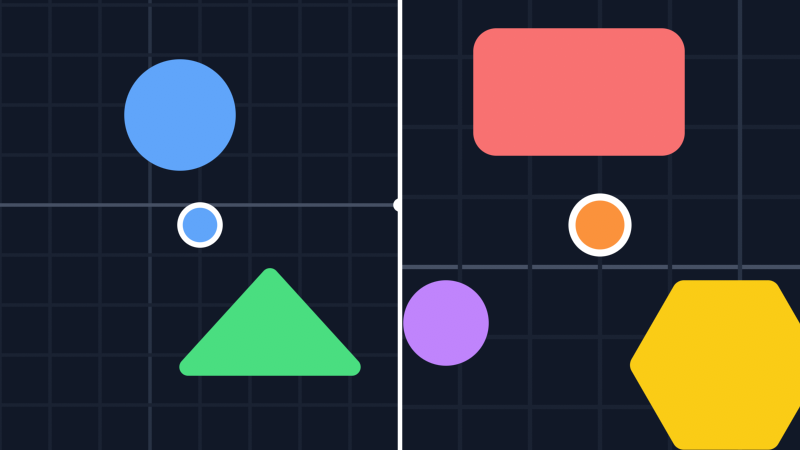
Viewports that share an edge always meet without a gap, at any window size.
DensityViewport
Keeps an area of the world visible at any window size. The last two parameters are the width and height of that area:
IVirtualViewport viewport = new DensityViewport(GraphicsDevice, Window, 400, 400);
The view gets scaled so that the whole area fits in the window. When the window’s shape doesn’t match the area’s, you see more of the world on the long side instead of black bars. The dashed square is the 400 by 400 area, in a wide window and in a tall one:
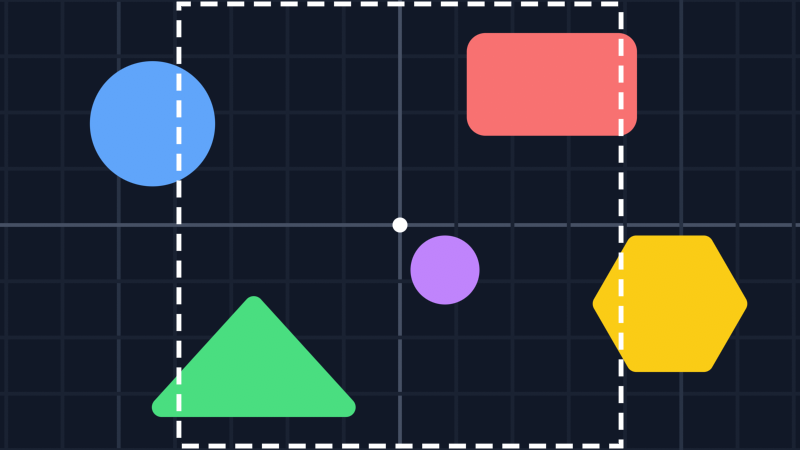
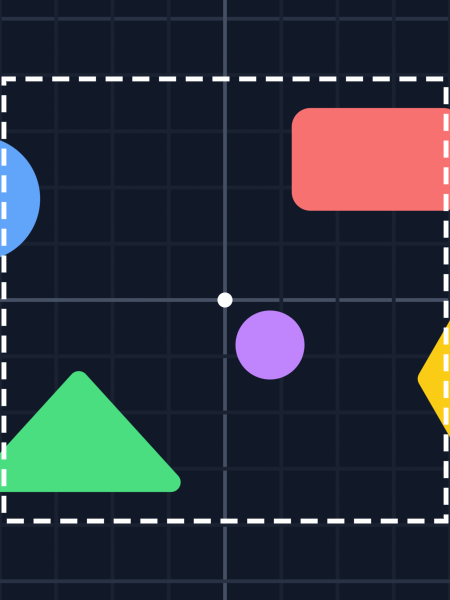
VirtualWidth and VirtualHeight are how much of the world fits in the window at a scale of 1. In the wide window above, that’s about 711 by 400. Ratio is how many pixels a world unit takes. You can change the area with TargetWidth and TargetHeight.
The density viewport always covers the whole window.
Your own viewport
You can make your own viewport by implementing IVirtualViewport:
X,Y,WidthandHeightare where it goes on the back buffer, in pixels.VirtualWidthandVirtualHeightare its size in world units at a scale of 1.Originis where the camera’sXYends up, in those same units. The built-in viewports put it in the middle.Transformtakes the camera’s view and returns it with your scaling added, if you have any.SetandResetput your viewport on theGraphicsDeviceand take it off.
Follow up
Depth, a guide that shows how to draw layers with parallax.
Edit this page on GitHub