Clipping
This guide will show you how to clip your draws to a rectangle.
Call SetClipRect to clip everything that gets drawn after it. Pass null to stop clipping. RectangleF comes from MonoGame.Extended:
using MonoGame.Extended;
_sb.Begin();

_sb.SetClipRect(new RectangleF(100, 100, 200, 150));
_sb.FillCircle(new Vector2(120, 120), 75, Color.White);
_sb.SetClipRect(null);

_sb.End();
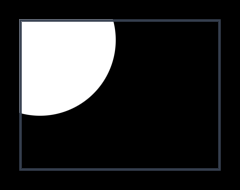
The circle gets cut off at the edges of the clip rectangle. The outline shows where the clip rectangle is. Clipping is done on the GPU and applies to shapes, text, and textures alike. Each time the clip changes, what was drawn so far goes out in its own draw call.
The clip rectangle is independent from Begin and End. It stays active until you clear it with null.
Rounded corners
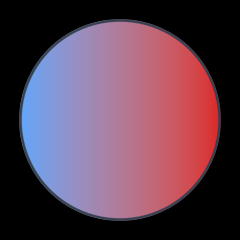
The second parameter rounds the corners of the clip rectangle. Fully rounding a square clip gives a circle mask:
_sb.SetClipRect(new RectangleF(100, 100, 200, 200), 100f);
Rotation
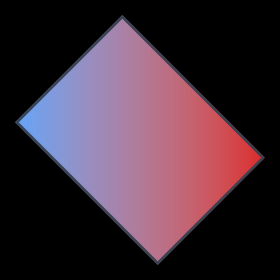
The third parameter rotates the clip rectangle around its center. The angle is in radians.
_sb.SetClipRect(new RectangleF(100, 100, 200, 150), 0f, MathF.PI / 4f);
Anti-aliasing
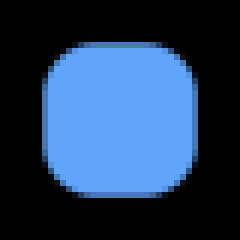
The fourth parameter is the size of the anti-aliasing edge in pixels. The default is 1.5f which matches the shapes. Set it to 0f to get a hard scissor edge.
_sb.SetClipRect(new RectangleF(100, 100, 200, 150), aaSize: 0f);
Both images are zoomed in. The first one uses the default anti-aliasing, the second one has it turned off:

Nesting
PushClip clips to a rectangle inside the clips that are already active, so draws only land where all of them overlap. PopClip takes it off again. Every clip keeps its own rounding and rotation:
_sb.PushClip(new RectangleF(50, 50, 180, 180), 40f, 0.35f);
_sb.PushClip(new RectangleF(-30, 110, 340, 60), 35f, -0.45f);
_sb.FillRectangle(new Vector2(0, 0), new Vector2(280, 280), gradient);
_sb.PopClip();
_sb.PopClip();
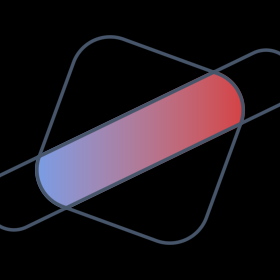
Up to four clips that cut across each other apply at once. A clip that sits whole inside another one doesn’t count toward that, which covers the usual case of panels inside panels. SetClipRect replaces every clip that’s active with its own.
Follow up
Text, a guide that shows how to draw text with the ShapeBatch.